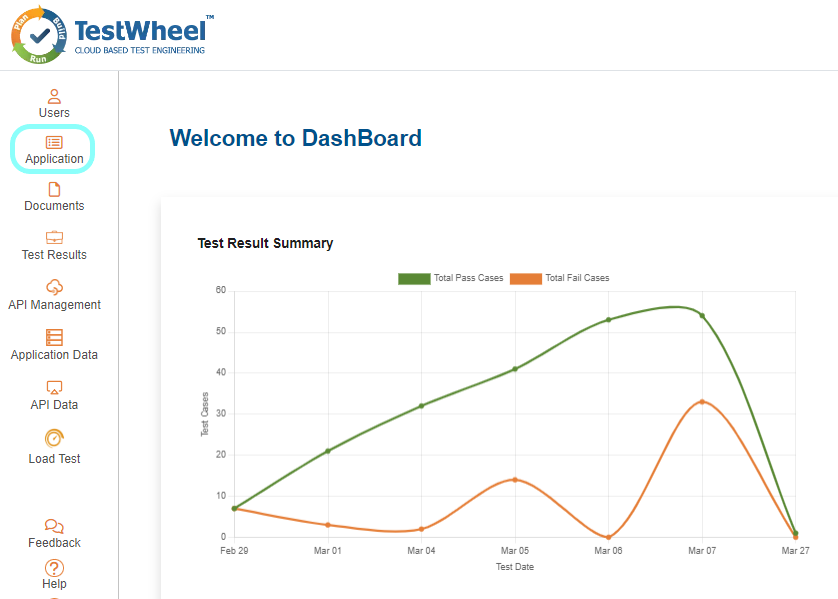
Click Add New Application Button and fill all the mandatory fields and select the Type as WEB Application for Functional Testing and Select the enivronment for which the application to be tested and as click Register to create an application.
3. Load Functional Test Data
After Successfull creation of application it will be listed in the applications page. To upload data to generate TestCase we can acheive it in two methods:
- Uploading Test Document
- Using Testwheel Recorder
3.1 Uploading Test Document
To upload a test document, follow these steps:
1. click the Documents icon form the menu bar
2. In the Documents Page click the Upload Button icon. Click Here to know more about how to fill in Excel Test Templates.
3. Upload the Excel Documents in this order - Authentication, UIProperties, User Data
4. Select the Application from application dropdown.
5. Add Decription and click the Upload Button.
6. After successfully uploading three documents. The uploaded files will be displayed in below table with their respective Application Name.
3.2 Using Testwheel Recorder
To load Test Data using Testwheel recorder , follow these steps:
1. Install the TestWheel Recorder in user’s chrome browser from Chrome Web Store.
2. After the Successfull installation of TestWheel Recorder Extension, User can Trigger it form Application Page in TestWheel
3. TestWheel Recorder will open a New Tab in user’s browser.
4. Select Application from the drop-down, on selection of Application, New Tab will be opened on the browser. It will Start Recording the user activites on the tab and Test Data will be populated in the home page of the TestWheel Recoder.
5. User can Edit and Update the recorded Test Data in the Table by clicking Edit Button.
6. By clicking the Export To TestWheel Button the recorded test data will be loaded to TestWheel.
4. Healing Feature
After loading the Test Data into TestWheel by either of the above two methods, TestWheel has auto healing feature, which will take care of any missing or misspelled web element properties, It will heal the miss matched element and resumes the test without any error or break. We can enable it by turning on the Healing Toggle Button in the Applications page.
5. Test Trigger
User can Trigger the Fuctional Test in Application Page from TestWheel Application.
6.Test Results
After triggering the test, user will be redirected to the Test Results Page, where user can Download the Test Report or Video of the Recorded Test.